ERP User Manual
Expense
The Expense Module is designed to help users manage and track various organizational expenditures efficiently. This module includes functionalities for categorizing expense types and recording actual expense transactions. By maintaining a structured expense log, the system ensures better financial oversight, transparency, and budgeting.
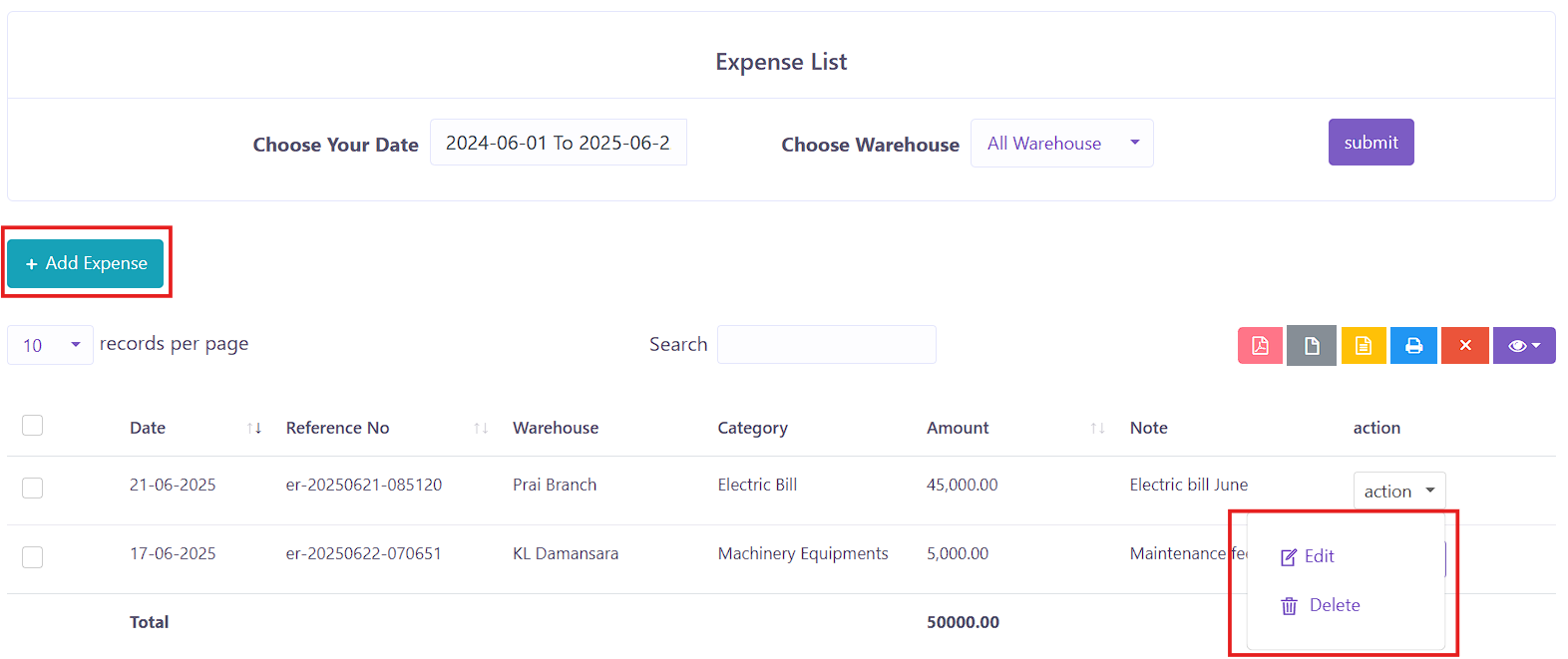 Figure 21: Expense List
 The Expense List page displays all recorded expense transactions in a DataTable format. Users can quickly review, filter, and manage existing expenses.
Key Columns:
- Date – The date the expense was recorded.
- Reference No – A unique reference identifier for the expense entry.
- Warehouse – The warehouse or location associated with the expense.
- Category – The type of expense (e.g., utilities, transportation).
- Amount – The total expense amount.
- Note – Any remarks or descriptions entered by the user.
- Action – Options to Edit or Delete the record.
To add a new expense record into the system, users can click the Add Expense
button,
 located on the top left of the Expense List
Index page. This will open a popup form to add new expense record.
located on the top left of the Expense List
Index page. This will open a popup form to add new expense record.
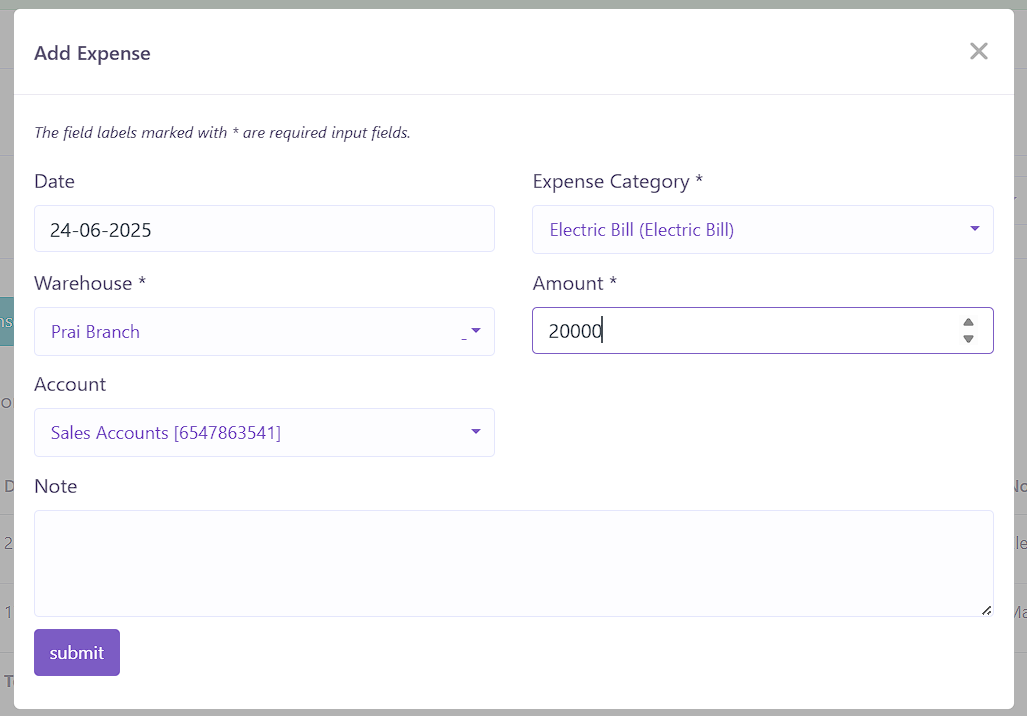 Figure 22: Add Expense Form
 The form requires the following details:
- Date – The date the expense occurred.
- Expense Category – Select from predefined categories (managed in Expense Category module).
- Warehouse – Specify the warehouse the expense is associated with.
- Amount – Enter the total cost.
- Account – Optionally specify the account used for the transaction.
- Note – Add a brief explanation or purpose of the expense.
After filling in all the required fields, user can click the submit
button,
 to save the record, and the added record will be reflected in the Expense List datatable.
Expense Category
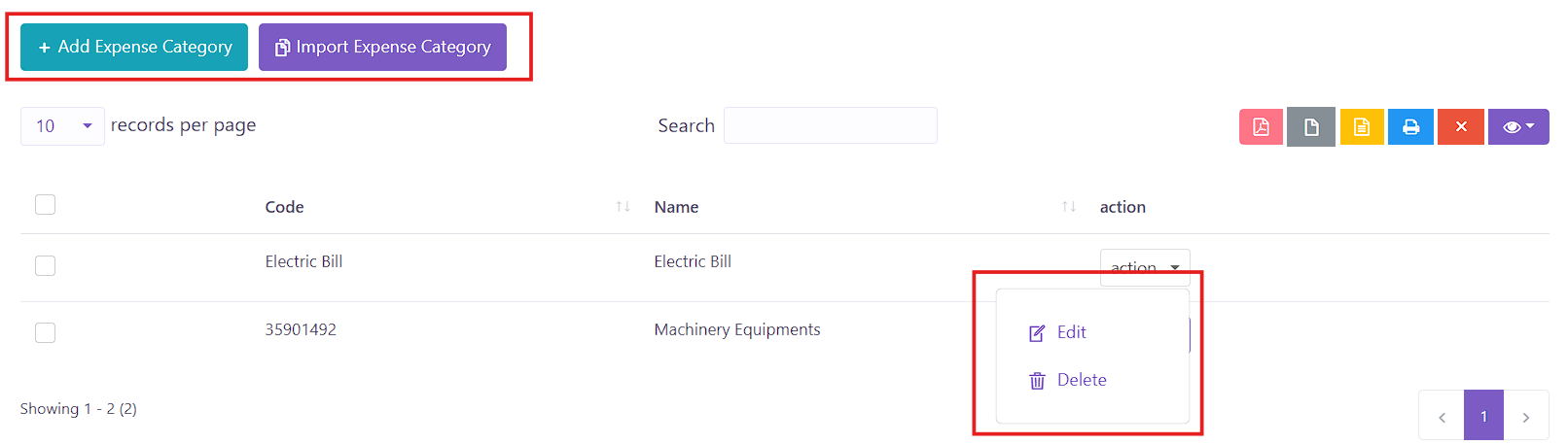 Figure 23: Expense Category List
 Expense categories help organize and classify different types of expenses for reporting and tracking. Each category can be reused when recording an expense.
Columns:
- Code – A unique identifier for the category (can be generated automatically).
- Name – The name of the category (e.g., Rent, Travel).
- Action – Options to Edit or Delete a category.
User can click the Add Expense Category button  to open a popup form where users can define a new category.
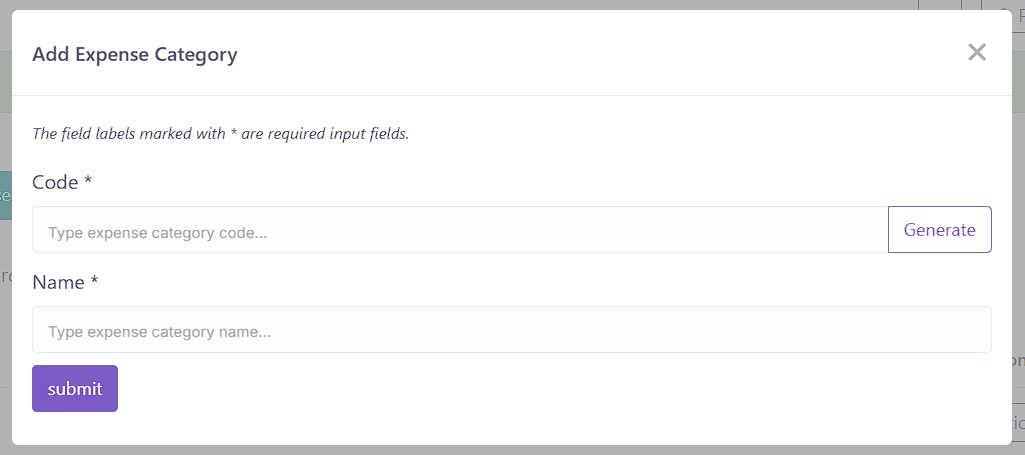 Figure 24: Add Expense Category Form
 The form will required the users to fill in these fields:
- Code – Auto-generated or user-defined code for the category.
- Name – Name of the expense category.
After filling in all the required fields, user can click the submit
button,
to save the new category, and the added expense category will be reflected in the
Expense Category datatable.