ERP User Manual
Quotation
The Quotation Module allows users to prepare and manage official price quotations for customers or suppliers. It serves as a pre-sales document used to outline products, pricing, and terms before a formal sale or purchase is made. Users can convert quotations into sales or purchases once confirmed.
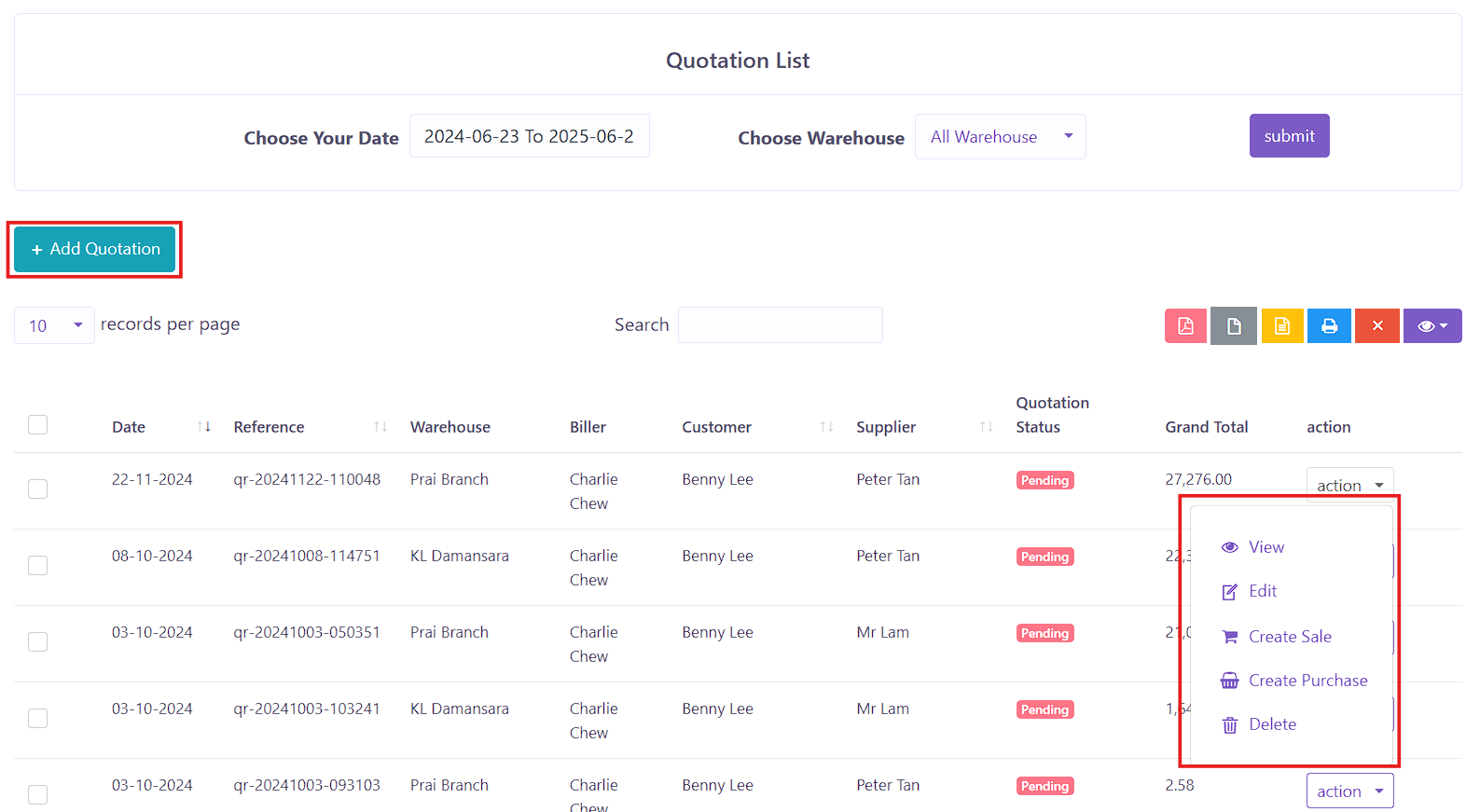 Figure XX: Quotation List
 The Quotation List page displays all recorded quotations in a DataTable format with the following columns:
- Date – Date when the quotation was created.
- Reference – Unique quotation reference number.
- Warehouse – Warehouse associated with the quotation.
- Biller – Staff responsible for issuing the quotation.
- Customer – Recipient customer for the quotation.
- Supplier – (If applicable) Supplier tied to the quotation.
- Quotation Status – Current status of the quotation (e.g., Sent, Pending).
- Grand Total – Total value of the quotation.
- Action – Options to View, Edit, Create Sale, Create Purchase, or Delete.
Add Quotation
To add a new quotation record into the system, users can click the Add
Quotation
button,
 located on the top left of the Quotation List
Index page. This will open the form to add new quotation record.
located on the top left of the Quotation List
Index page. This will open the form to add new quotation record.
 Figure XX: Add Quotation Form (I)
 The form includes the following sections:
- Biller – Select the employee or responsible person from a dropdown.
- Supplier – Choose a supplier if this quotation involves procurement.
- Customer – Select the intended customer for the quotation.
- Warehouse – Select the source/destination warehouse.
- Product – Search and select a product by product code or name. Once selected, it will appear in the order table.
Displayed products are listed in the Order Table with the following fields:
- Product Name & Code
- Batch Number
- Quantity – User enter the quantity quoted.
- Net Unit Price
- Discount
- Tax
- Subtotal
- Delete – Option to remove product from the list.
 Figure XX: Add Quotation Form (II)
 The second section of the form includes the following sections:
- Order Tax – Select applicable order tax.
- Order Discount – Input any discount to be applied to the entire quotation.
- Shipping Cost – Additional delivery charges (if any).
- Status – Choose between Pending or Sent.
- Attach Document – Upload supporting files such as price sheets or terms.
- Note – Enter any internal or external remarks.
The footer section provides a real-time financial breakdown:
- Items – Total number of products in the quotation.
- Total – Combined product value before tax/discounts.
- Order Tax – Tax based on the selected rate.
- Order Discount – Discount applied across the entire quotation.
- Shipping Cost – Delivery charges.
- Grand Total – Final quoted amount.