ERP User Manual
Accounting
The Accounting Module allows users to manage and track financial accounts, transfer funds, monitor balances, and generate account statements. It includes four main features: Account List, Money Transfer, Balance Sheet, and Account Statement.
Account List
This page displays a list of all financial accounts in the system. User can set which account to activate using on/off button in the table.
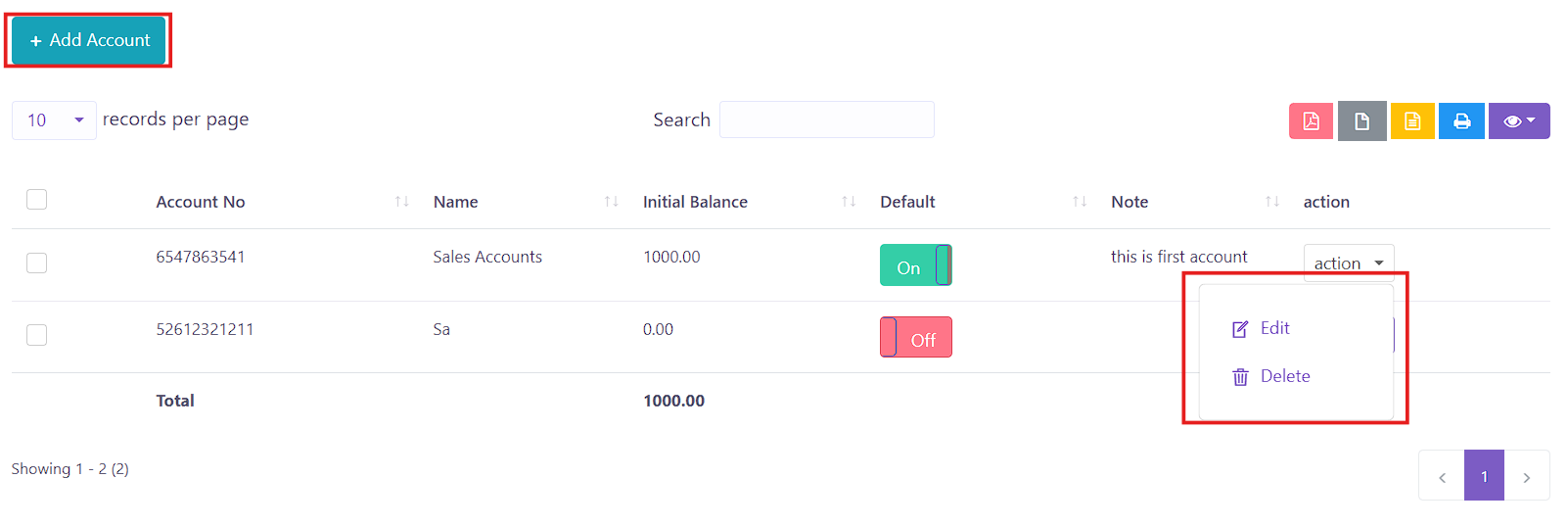 Figure X: Account List
Key Columns:
- Account No
- Name
- Initial Balance
- Default – Toggle to mark the account as on or off
- Note
- Action – Options to Edit or Delete the record.
To add a new account, users can click Add Account button  located on the top left of the Account List
Index page. This will open a popup form to add new account in the system.
located on the top left of the Account List
Index page. This will open a popup form to add new account in the system.
 Figure X: Add Account Form
 The form requires the following details:
- Account No – A unique account number
- Name – The name of the account holder or the account title, used to identify what the account is for (e.g., "Petty Cash", "Bank ABC").
- Initial Balance – The starting amount of money in the account when it is first created. This is useful for accurate bookkeeping from the start.
- Note – A text field for any additional information or remarks about the account (e.g., “Used for monthly operational expenses”).
After filling in all the required fields, user can click the submit
button,
 to save the record, and the added record will
be reflected in the
Expense List datatable.
to save the record, and the added record will
be reflected in the
Expense List datatable.
Money Transfer
The Money Transfer page enables users to transfer funds internally between registered financial accounts. It is useful for moving balances from one account to another, such as transferring funds from a bank account to petty cash.
 Figure X: Money Transfer List
Key Columns:
- Date – The date the money transfer was recorded.
- Reference No – Unique identifier for the transfer record.
- From Account – The source account where the money is deducted from.
- To Account – The destination account where the money is transferred to.
- Amount – The total amount being transferred.
- Action – Options to Edit or Delete the transfer record.
To create a new transfer, click the Add Transfer button
 located at the top of the index page. This opens a popup form
for entering transfer details.
located at the top of the index page. This opens a popup form
for entering transfer details.
 Figure X: Add Transfer Form
The form includes the following fields:
- From Account – Select the account to transfer funds from (dropdown list).
- To Account – Select the receiving account (dropdown list).
- Amount – Enter the total amount to transfer.
After filling in the fields, click the Submit button
to save the transaction. The new transfer will now appear in
the Money Transfer table.
Balance Sheet
The Balance Sheet provides a real-time overview of all registered financial accounts in the system. It summarizes each account’s credit, debit, and current balance, making it easier for users to monitor overall financial status.
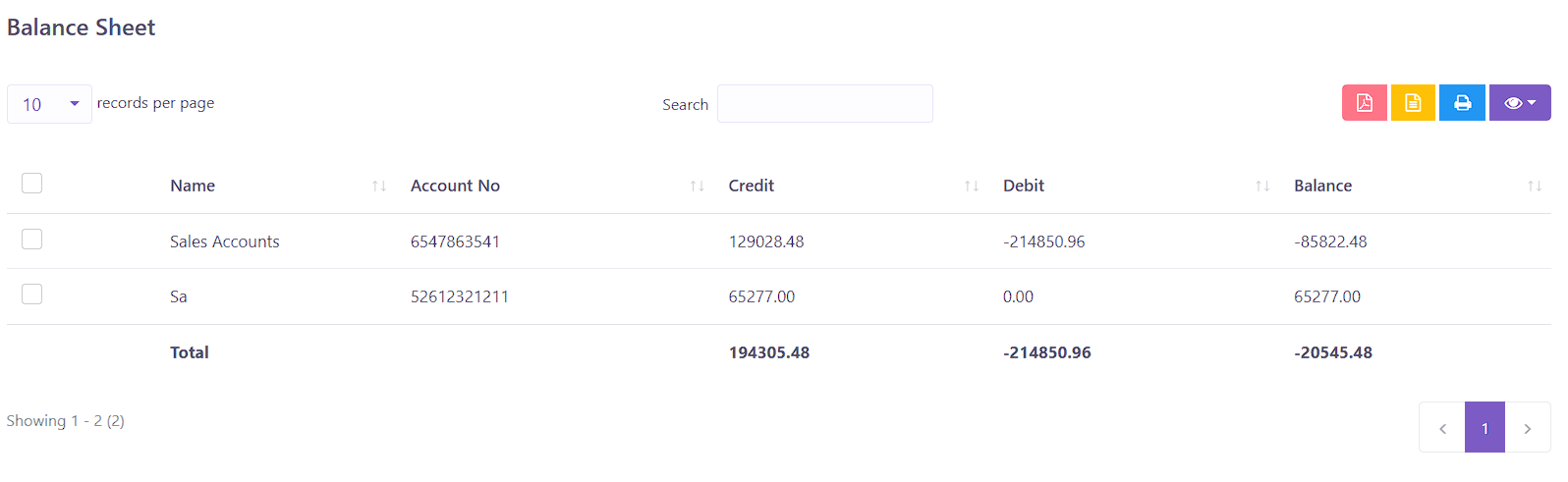 Figure X: Balance Sheet Overview
Table Columns:
- Name – The title of the financial account (e.g., “Cash on Hand”, “Bank Rakyat”).
- Account No – The account bank number.
- Credit – Total incoming funds recorded for that account.
- Debit – Total outgoing funds recorded for that account.
- Balance – The current balance, calculated as Credit - Debit.
At the bottom of the table, a total row summarizes the overall credit, debit, and final balance across all accounts. This helps in quickly evaluating the financial health of the business.
Account Statement
The Account Statement feature allows users to generate a detailed financial report for any specific account. This helps in tracking individual account activity over a selected date range, filtered by transaction type.
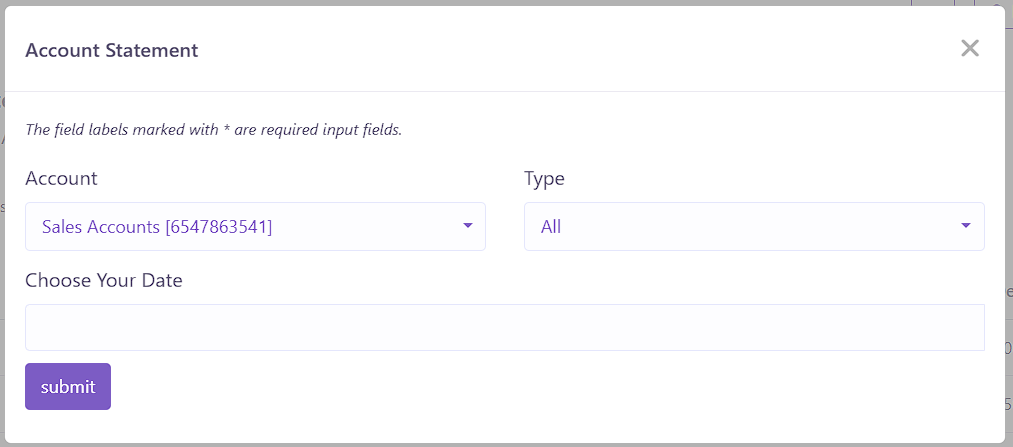 Figure X: Account Statement Filter Form
To generate a report, users must first complete the Account Statement Form which includes the following fields:
- Account – Select the account you wish to view the statement for.
- Type – Choose to filter by All transactions, or only Debit or Credit.
- Date Range – Select the start and end date for the period you want to review.
- Submit – Click the submit button to generate the statement.
After submitting the form, the system will display the filtered results in a table format as shown below:
 Figure X: Account Statement Results
Displayed Columns:
- Date – The transaction date.
- Reference No – Unique identifier of the related transaction.
- Related Transaction – Description or source of the transaction (e.g., Payment, Expense, Transfer).
- Credit – Inflow amount added to the account.
- Debit – Outflow amount deducted from the account.
- Balance – Running balance after each transaction.
Note: No data will be shown until the user selects the required fields and clicks submit. This ensures that only relevant, user-defined information is displayed.